Main menu
At the bottom left of the main window is the GEFASOFT button. The button shows indicates the system state by its color. Clicking on the GEFASOFT button opens the main menu:
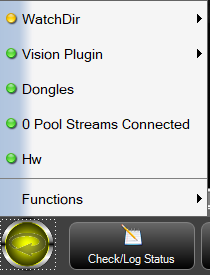
The entries above Functions show the status of various general or project-specific components and plugins in color.
Directly above Functions all PLC connections are listed (or all GInOut hardware connections).
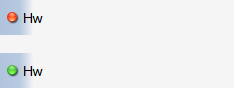
Optionally, an entry for the ConnectionStreamPool is displayed above this, indicating the connection status of the pool.
The item Dongles is always present and shows whether the required license keys (e.g. Gefasoft or Cognex) were found successfully.
This displays status information of individual plugins, which in turn can display multiple messages in a submenu, e.g. the WatchDir plugin or the Vision plugin.
Warning
If the status indicators are not green, an error analysis must be carried out immediately!
Functions
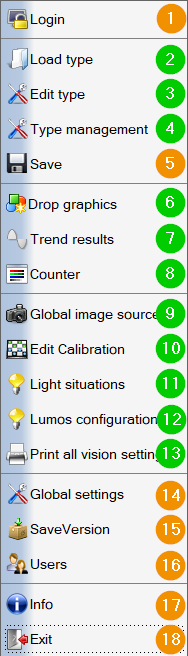
User login
Saving the project
Opens the Global settings
Starts SaveVersion
Opens the User management
Opens the Info Dialog.
Exit Viper.NET
The green colored menu items are from the vision plugin.
Global settings
In the “Global Settings”, parameters that apply to the entire application or project are set. The dialog can be extended via plugins, e.g. by the Vision plugin.
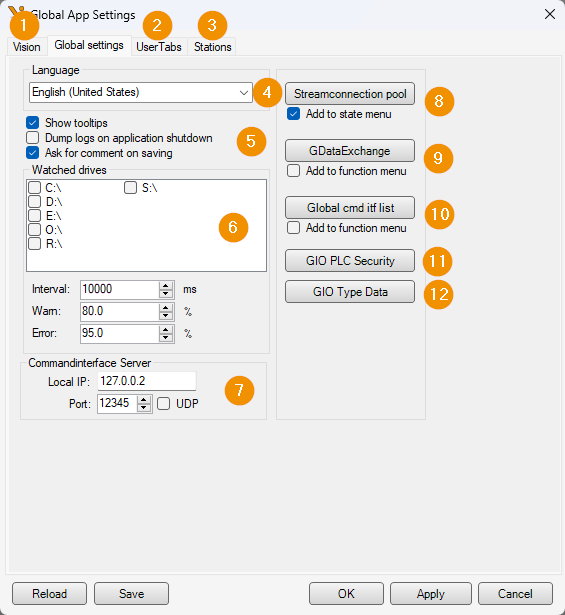
Settings of the Vision plugin
Settings for managing user tabs and layout children
Settings of the station editor
Language switching
Miscellaneous
Show tooltips: Enables or disables tooltips in Viper.NET
dump the logs on exit (see also GBufferAppender)
Enable comment function on save.
Display of the memory usage of individual hard disks. Displayed in the Sidebar if at least one hard disk is monitored.
CommandInterfaceServer settings. See also Command interface (CmdItf).
Configuration of viper-core-relevant MAK project settings
Configuration of the stream pools
Configuration of the GDataExchange in the function menu
Configuration of commands or function calls to the local CommandInterfaceServer (4).
Configuration of the GIO PLC Security
Configuration of the GIO type data
Configuration of the global log level Configuration log level
SaveVersion
Info Dialog
Display of information about Viper.NET and the loaded project.
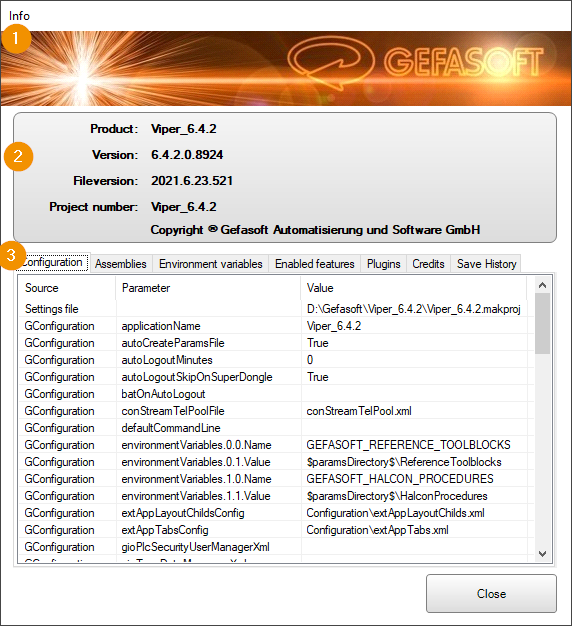
Header, replaceable via shellConfiguration.config.
Display of version and application information
Detailed information
The table in Configuration contains the path to the Viper.NET project in the first row. The remaining lines correspond to the configuration values in the Viper.NET project file.
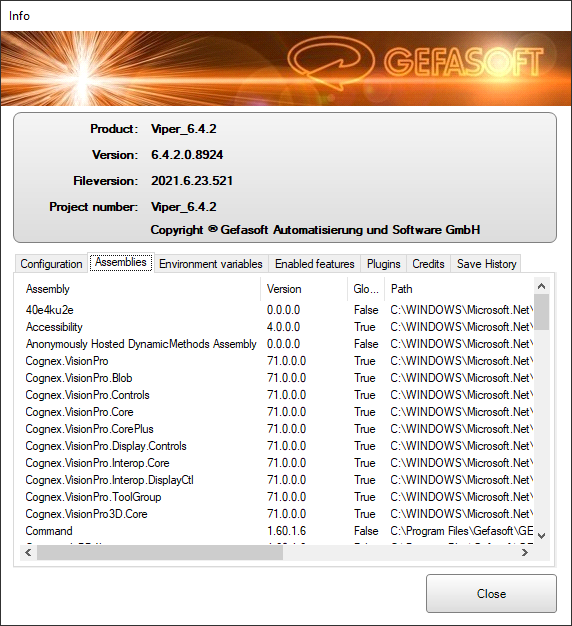
In Assemblies all currently loaded .NET assemblies are listed:
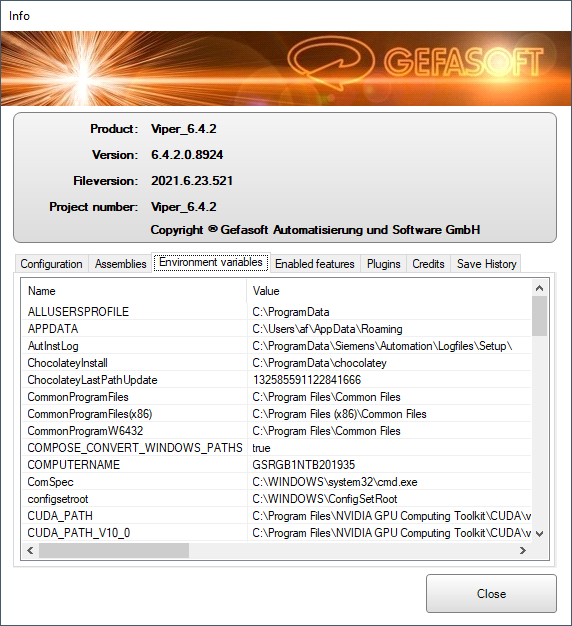
Environment variables contains the environment variables that are valid for the process, including those set via the globalParams.xml parameter file.
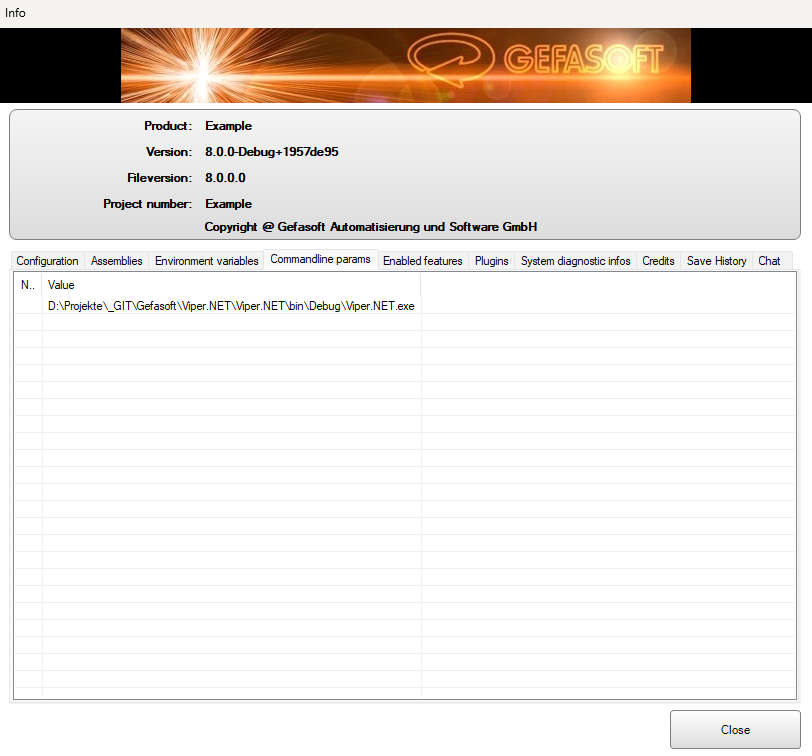
The command line parameters with which the application was started are displayed in the Commandline params tab.
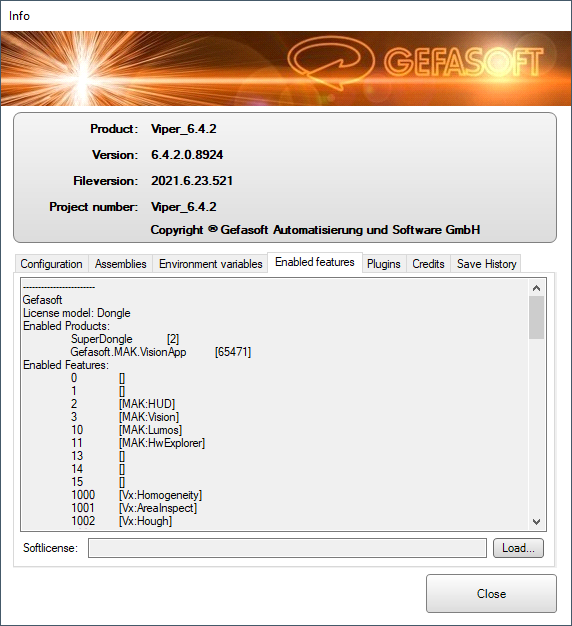
Under Enabled features the license activations of the dongles from Gefasoft and optionally VisionPro and Halcon are displayed. In addition, a Viper.NET license file can be activated here.
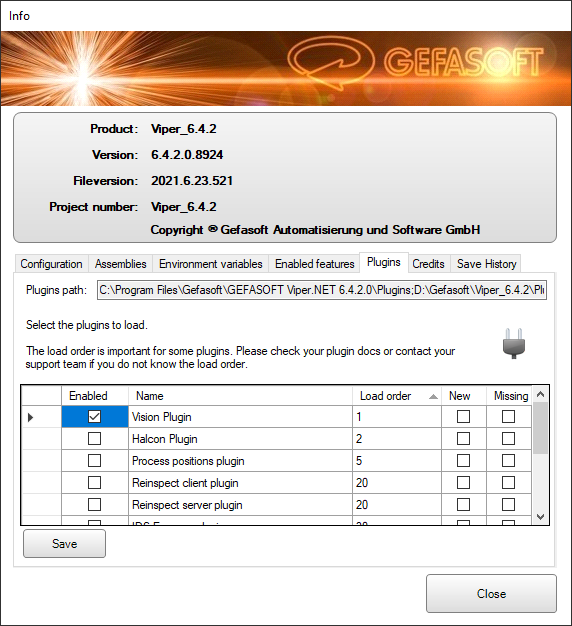
In the tab Plugins the plugin configuration can be adjusted. After selecting or deselecting plugins, the configuration must be saved with Save and then Viper.NET must be restarted.
Warning
If plugins referenced in the project are deselected, data may no longer be loaded.
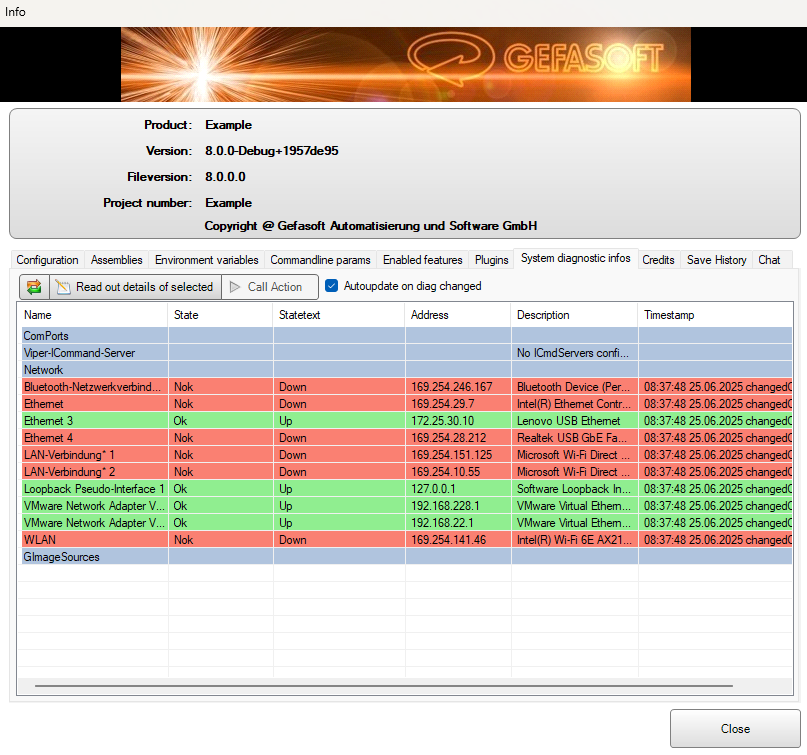
All connections that currently exist are displayed in the System diagnostic infos tab. Even unused ones.
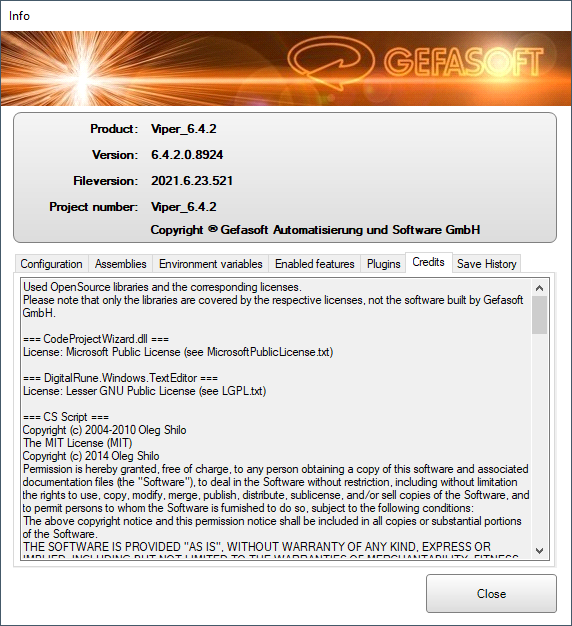
Credits contains the license information of all used OpenSource libraries.
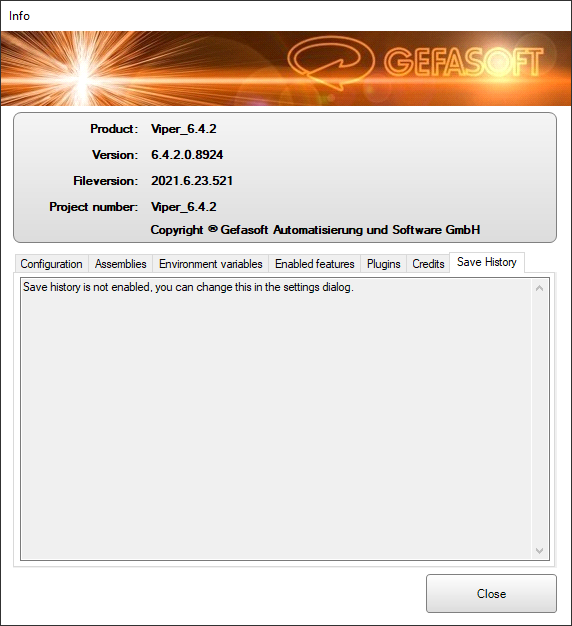
The Save History shows all save-comments (if active).
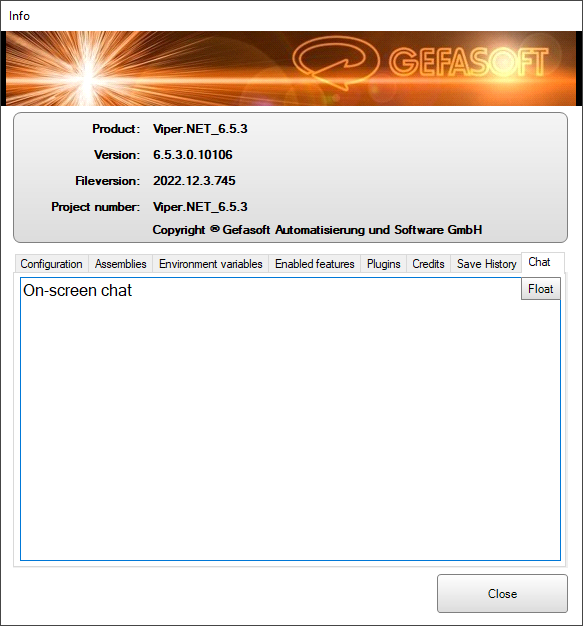
The text box in the Chat tab can be used for on-screen communication between an on-site employee and a service technician connected via remote access when no other communication is possible.
Hint
The font size can be changed with Ctrl+mouse wheel.
Transmit shell status to PLC
The shell transmits its current operating state (MainState) to the PLC as a UInt32 value on every state change. If a heartbeat interval (ms) is additionally configured, the value is written cyclically and the heartbeat bit (bit 31) is inverted at each interval to signal that the connection is active.
Creating a GIO variable
First, a GIO variable of type UInt32 must be created in the GInOut hardware explorer (see GInOut hardware explorer).
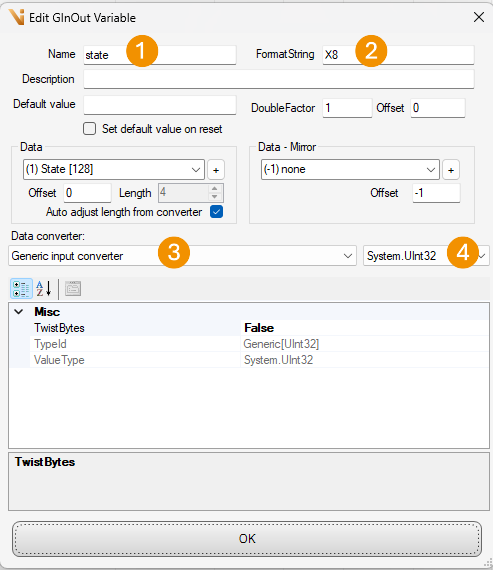
Configuration of the GIO variable for the shell MainState.
Hint
The fields marked 1–4 must be configured exactly as shown in the figure.
Global settings
Next, the global application settings are used to specify which GIO variable provides the shell MainState to the PLC.
Open the global settings via the main menu (GEFASOFT button → Functions → Global settings).
Switch to the Global settings tab (1).
In the Shell mainstate → PLC (GIO-UInt32-Variable) section, select the previously created variable (2).
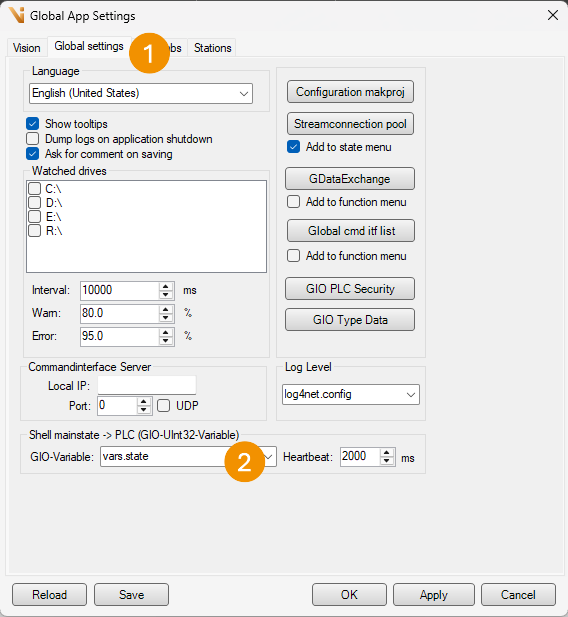
Assigning the GIO variable in the global settings.
State overview
The shell MainState is defined as a UInt32. The individual values are structured as bitmasks and can be combined using bitwise OR.
Value |
Hex value |
Description |
|---|---|---|
|
|
Initial value / undefined state |
|
|
No error |
|
|
General warning |
|
|
General error |
|
|
Dongle warning |
|
|
Dongle error |
|
|
Hardware warning |
|
|
Hardware error |
|
|
Connection pool warning |
|
|
Connection pool error |
|
|
Plugin warning |
|
|
Plugin error |
|
|
Heartbeat flag (bit 31); signals an active connection |
Bitmask logic
Each component (dongle, hardware, ConPool, plugin) occupies its own nibble pair within the 32-bit value. This allows the source of a warning or error to be identified directly from the state value.
Example: 0x80010001 = HeartBeat (0x80000000) | PlugInWarn (0x00010001)
Bit 31 serves exclusively as a heartbeat flag and is not part of the actual state. To obtain the pure state value, the heartbeat bit is removed by masking with 0x7FFFFFFF.
Note
If the PLC does not detect regular toggling of bit 31, communication has been interrupted. In this case, the network connection, port settings, and the running state of the application should be checked.