RAID Status Plugin
The RAID Status plugin monitors the state of the system’s Intel RST (VMD) RAID volumes and shows it as a traffic light directly in the main menu. If a volume is no longer redundant (Degraded) or has failed (Failed), the warning becomes visible through the normal Viper status mechanism: the menu row turns red and the GEFASOFT button changes color accordingly.
Note
The plugin is intended for machines with Intel RST / VMD RAID (target hardware Kontron/Fujitsu K3851-R). It requires the Intel VMD driver as well as the Intel Storage Middleware Service (RstMwService), which writes the events to the Windows event log. Without installed Intel RST software the plugin cannot provide a meaningful status.
The plugin does not add any controls of its own to the Viper interface; it only extends the status display in the main menu with a RAID Status entry and, on click, opens a detail window per RAID volume.
Status display in the main menu
Like the WatchDir plugin, the RAID Status plugin adds itself to the status entries above Functions. The RAID Status entry shows the worst state of all volumes by color; the submenu contains one row per RAID volume.
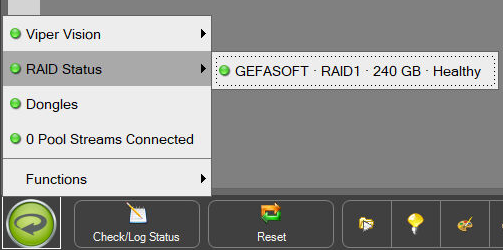
Healthy RAID: the RAID Status entry is green, the volume row shows name, RAID level, size and state.
Each row follows the pattern Name · Level · Size · State (separated by a middle dot), for example GEFASOFT · RAID1 · 240 GB · Healthy. If a rebuild is in progress, the progress is appended as a percentage (… · Rebuilding 42 %).
If no RAID volume is present, a single green row No RAID volume present appears – without a RAID nothing can fail, so this state is deliberately not designed as a warning.
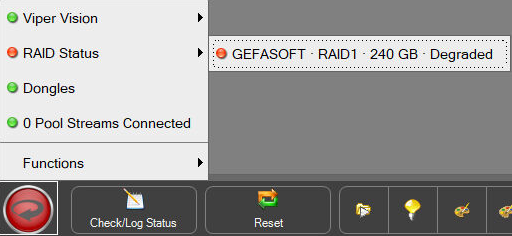
Degraded RAID: if a mirror member fails, the entry turns red and the row shows Degraded.
The color (traffic light) is derived from the normalized state of the volume:
State |
Traffic light |
Meaning |
|---|---|---|
Healthy |
green |
Array is fully redundant / OK. |
Rebuilding |
yellow |
Array is being rebuilt, verified or initialized (temporary). |
Degraded |
red |
Array is online, but redundancy is lost (a member is missing or has failed). |
Failed |
red |
Array has failed or is offline. |
Unknown |
yellow |
No state could be determined (e.g. not yet queried or status not readable). |
Warning
If the RAID status display is not green, a fault analysis must be carried out immediately. A degraded RAID1 does keep running, but has no redundancy left – if the remaining disk fails, the data is lost.
Detail window
Clicking a volume row opens a detail window for that volume. The window updates automatically on every status change and can be reloaded (Refresh) or saved as a text file (Save) using the buttons in the top right.
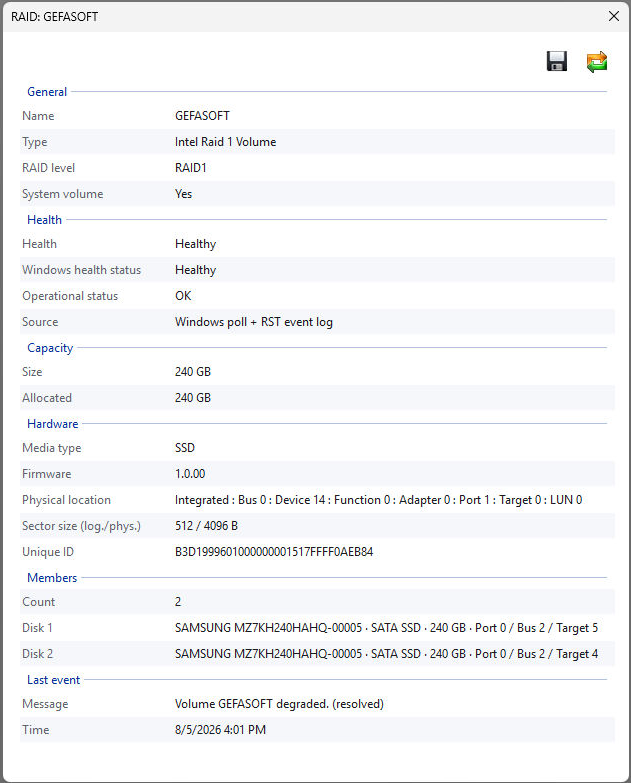
Detail window of a healthy RAID1 volume.
The information is organized into sections:
General – name, type, RAID level and whether it is the system volume.
Health – the determined Health state, plus the Windows health status and the Operational status from the Windows storage stack, as well as the Source of the assessment (see Status detection).
Capacity – size and used portion of the volume.
Hardware – media type (HDD/SSD), firmware, physical location, sector size and unique ID.
Members – number and list of the physical disks involved (model, interface, size and connection), reconstructed from the RST event log.
Last event – the most recent RST message reported for this volume, including its timestamp.
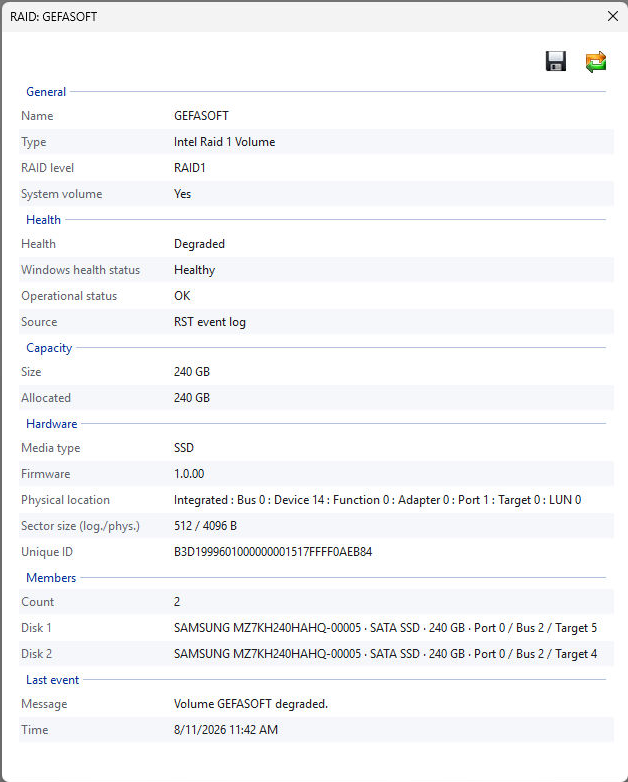
The same volume in the degraded state: Health is set to Degraded and the Source is shown as the RST event log.
Hint
If the driver reports a Degraded and the array is later complete again, the last event message in the Last event field is marked as resolved with the suffix (resolved).
Status detection
The displayed state is combined from two sources – the worse value always wins:
Windows storage poll – cyclic query of the Windows storage stack (
MSFT_PhysicalDiskwithBusType = RAID). It provides the authoritative current state as well as the RAID level and capacity. The interval can be set via thepollIntervalMsparameter (default 5000 ms).RST event log – a live subscription and a history scan of the Windows event log (provider RST Middleware). It captures degrade/rebuild transitions – including a state that was already degraded before Viper was started.
Note
A fault state derived from the event log is sticky: it persists until a positive event arrives, a full re-detection of all members takes place, or the state is reset manually. The reason: Windows does not necessarily report a degraded Intel RAID1 mirror as unhealthy as long as it is still online – without the event evaluation a failure might therefore go unnoticed.
Resetting the state
A “stuck” fault state (for example after an already completed disk replacement that the driver did not acknowledge with a Normal event) is cleared using the Reset button in the function panel: besides stations and vision jobs it also resets the plugin states. The RAID status is then queried again immediately.
Log Status in the function panel writes the current state together with the remaining system information to the log.
Shell status to the PLC
A degraded or failed RAID raises – like any plugin warning – the shell MainState (PlugInWarn or PlugInError). If transmission of the MainState to the PLC is configured, the RAID fault can thus also be evaluated on the controller side.
Installation and activation
Das Plugin wird wie jedes andere in den Plugin-Ordner der Installation bzw. des Projekts kopiert und anschließend im Info-Dialog im Reiter Plugins aktiviert.